
CEO
Setting Up Your Online Booking Link on Happoin: A Guide to Enabling 24/7 Scheduling
To activate your online booking link, go to Services > Create > Public > Allow Bookings and complete your service details. This simple setup allows your clients to schedule appointments without you ever having to touch your phone, immediately eliminating the "WhatsApp slavery" that forces you to answer messages after hours or interrupt your workflow.
With Happoin, you offer a total Self-Service experience: your clients see your real-time availability and book in seconds via a lightweight web URL—no need to download new apps that just clutter their mobile storage.
Step-by-Step: Activate Your Booking Link in 5 Minutes
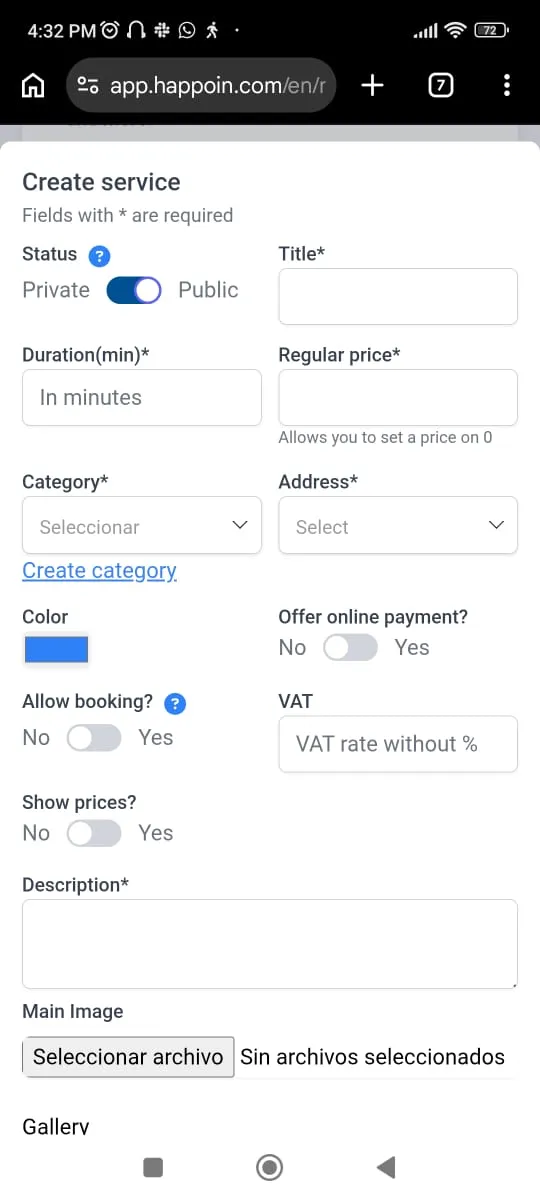
Follow this tutorial designed to take you from setup to your first booking today:
-
Enter Menu > Services > Create.
-
Select the "Public" status so the service is visible in your booking catalog.
-
Complete the Title, Duration, and Price fields (you have the option to hide the price later).
-
In the "Allow reservation?" field, select "Yes".
-
Add a detailed Description to build trust and upload an attractive image of your service (optional, but highly recommended to improve conversion).
-
Press Save.
You have now activated your booking link! You can view and share it with your clients on the Web via the "Booking Link" button and in the App under "Share."
How to Request Upfront Payments During Booking
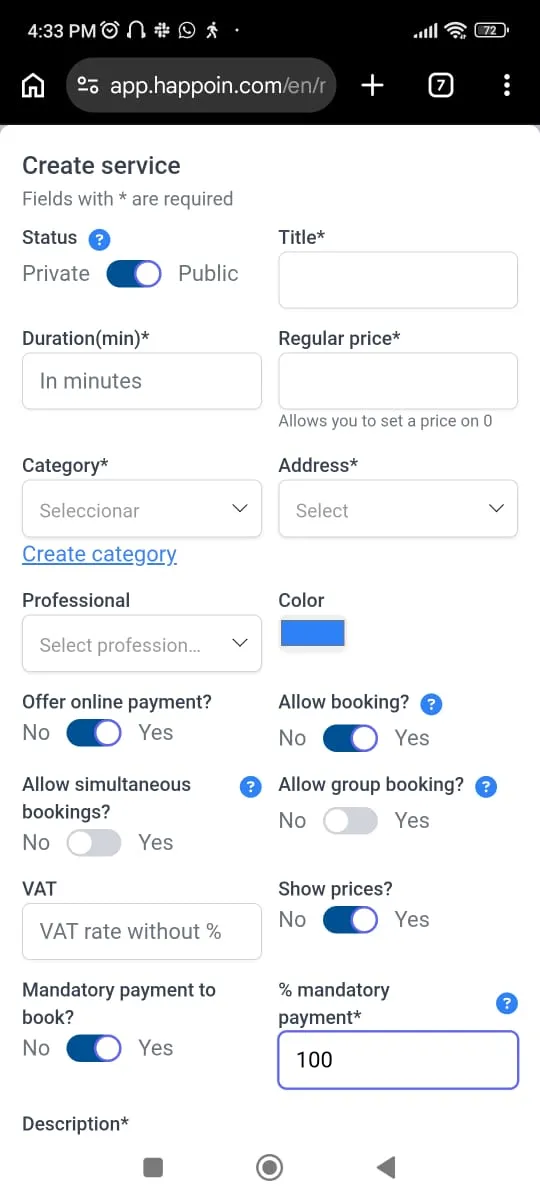
With Happoin, you can require clients to make an advance payment to secure an appointment. To do this, follow these steps:
-
First, add your payment methods in the Payment Methods option within the Services section.
-
Select the service and, in the "Offer online payment?" field, check "Yes."
-
In the "Show prices?" and "Mandatory payment to book?" fields, select "Yes."
-
In the "% mandatory payment" field, enter the percentage you want clients to pay upfront. For example, enter 100% for full payment, or a smaller percentage if you only want a deposit.
-
Finally, press Save to enable mandatory payment for that service.
How to Allow Multiple Bookings at the Same Time
Activate the "Allow simultaneous bookings" option if you can attend to more than one client at once. This keeps the time slot available until your maximum capacity is reached.
Example: Physical therapists often treat multiple clients during the same hour.
-
In the "Allow simultaneous bookings?" field, select "Yes."
-
In the "Max simultaneous bookings" field, set the maximum number of clients you can handle at that time. Once that limit is reached, the slot will no longer appear as available.
Want to allow clients to book multiple services? Select "Yes" for "Allow group booking?" if you want this service to be bookable alongside other services from your business.
Omnipresence Strategy: Where to Place Your Link
Don't wait for traffic to find you; place your booking link where your clients are already making decisions:
-
Instagram Bio: Turn followers into confirmed appointments with a single click.
-
Google Business Profile: Crucial for capturing those searching for local services "right now."
-
WhatsApp Status: Remind your recurring contacts that scheduling with you is now easier than ever.
Real Results: The Impact of Being "Always Open"
The data doesn't lie: businesses that enable the Happoin online booking link report an average of 25% more appointments scheduled outside of office hours.
Frequently Asked Questions (FAQ)
-
Do my clients have to register to book?
No. The process is direct. They simply choose the service, an available time, and fill in basic details to receive a confirmation via WhatsApp.
-
Can I ask for a deposit or upfront payment?
Yes. Happoin allows you to configure prepayments (50% or 100%) at the time of booking to ensure attendance and protect your income.
-
Does the link work if I have multiple employees?
Absolutely. You can assign services to specific professionals or let the client choose whom they want to book with.
Ready to reclaim your time and bill 24/7? Activate my link now or View subscription plans to keep your growth momentum going. Once active, we recommend our guide on "How to customize your WhatsApp reminders" to automate your entire appointment cycle.